The manual
This manual walks through every screen. Each part says what the screen is for, how to use it, and, in the gold boxes, why it works the way it does. The lodge in the pictures, St Andrew Lodge No. 99, and every name and amount are made up.
- The idea behind it
- Getting started
- Home
- Money in and money out
- Changing or removing an entry
- The List
- This month
- Taken or banked, and To bank
- The monthly report
- Settings
- Backup
- Sharing the book
- Helpers and what they can do
- To check
- For helpers: joining a book
- No signal
- What we assumed
- Questions
1. The idea behind it
A lodge treasurer needs to know three things: what came in, what went out, and what the lodge has. Two Keys Ledger keeps those three things, fund by fund, and turns them into the monthly report.
2. Getting started
Open twokeysledger.com/app in your phone's browser. To keep it on your Home Screen like any other app:
- iPhone and iPad: in Safari tap Share, then "Add to Home Screen".
- Android: in Chrome tap the menu, then "Install app".
- PC: just keep the page as a bookmark.
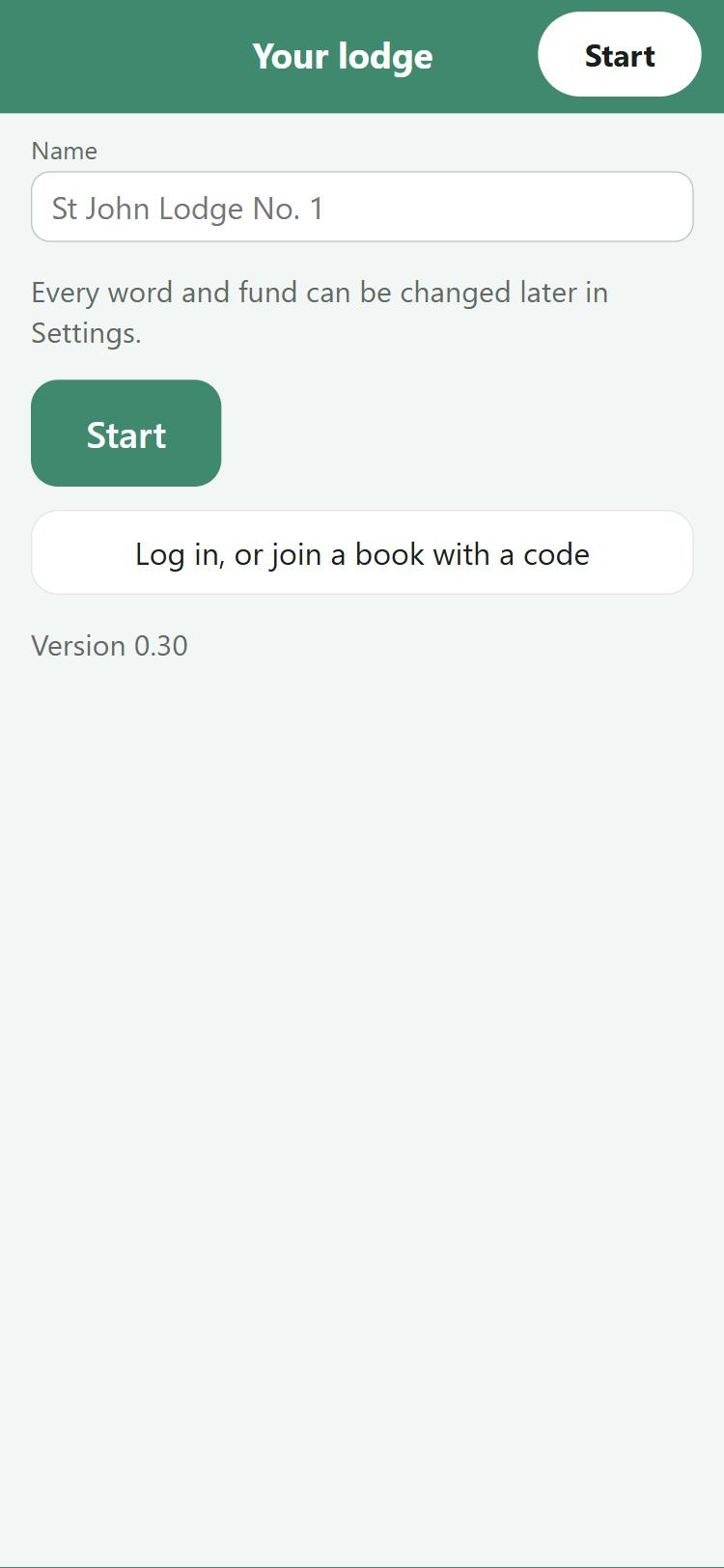
Type your lodge's name and tap Start. You get a General fund and a Charity fund, and the usual kinds of money: dues, donations, raffle, dinner tickets, initiation fees, hall rental and so on for money in; Grand Lodge dues, rent, utilities, insurance, charity gifts, dinners, regalia and so on for money out.
Next, go to Settings, Funds and type what each fund held on the day you start, in "Had at the start" (the opening balance). Use the bank statement and your cash box.
3. Home
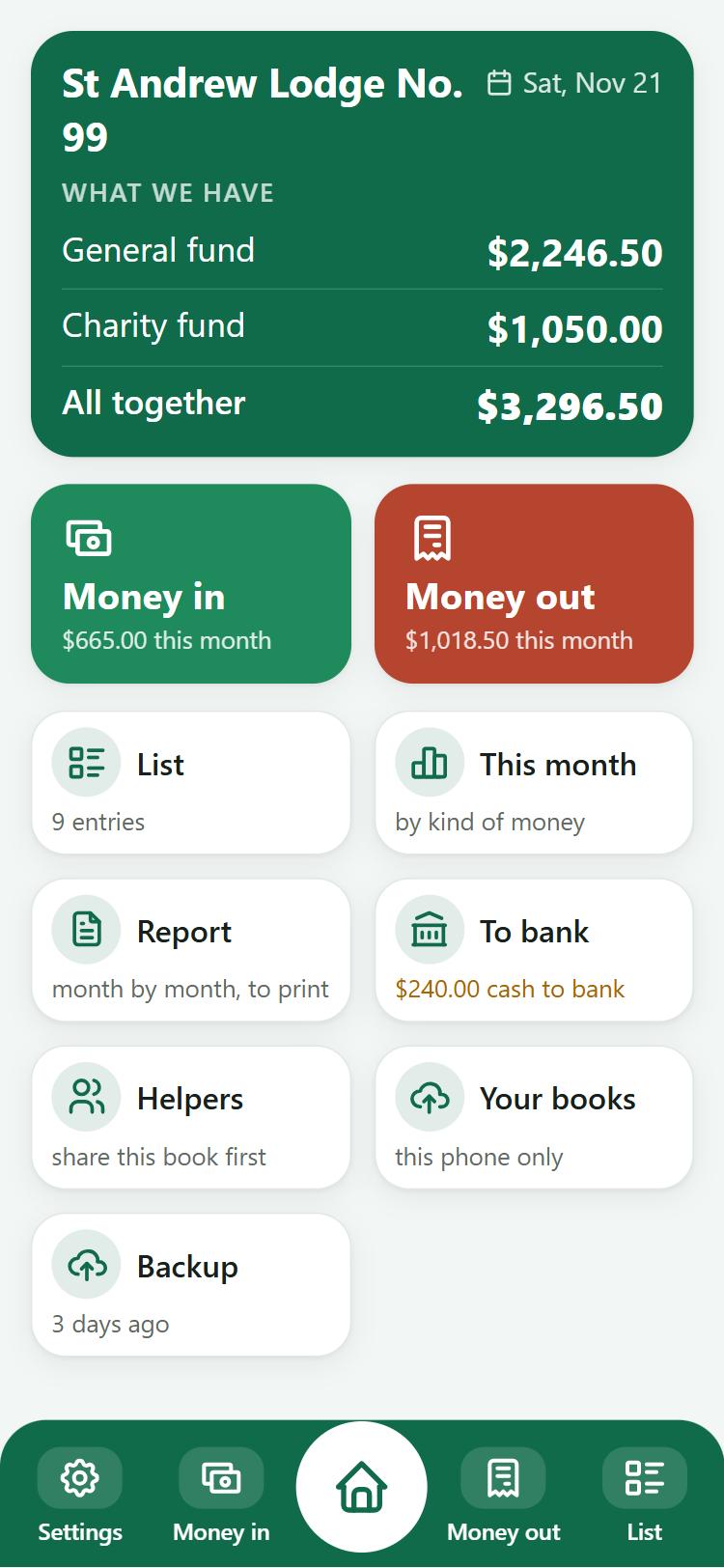
The top shows What we have: each fund and all together. Below are the two big buttons, Money in (green) and Money out (red), with this month's totals.
The tiles below each show a live number: how many entries, how much cash is waiting to be banked, how long since the last backup, and, for shared books, how many helpers' entries are waiting.
The bar along the bottom is always the same: Settings, Money in, Home (the round button), Money out, List.
4. Money in and money out
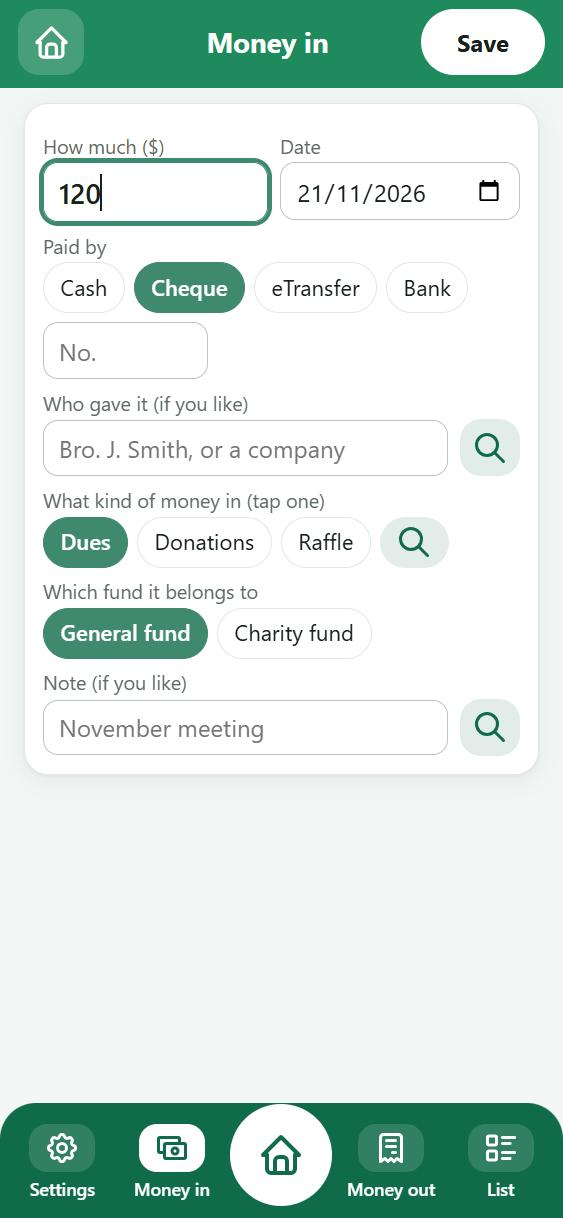
Tap Money in or Money out. The amount box is ready for typing.
- How much: type it like 50 or 50.25.
- Date: today unless you change it.
- Paid by / Paid with: Cash, Cheque, eTransfer or Bank. For a cheque or eTransfer, type its number in the small box. The app starts on whatever you used last time.
- Who: the brother, company or person. Tap the magnifier to pick from names used before.
- What kind of money: tap one, such as Dues or Rent. The magnifier shows them all.
- Which fund: General or Charity.
- Note, if you like: "November meeting", "2027 dues".
Tap Save at the top. On an iPhone or iPad, a bar with Next and Save sits just above the keyboard.
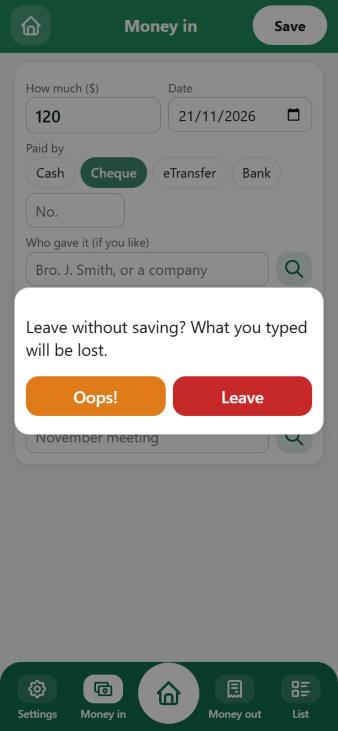
Leaving by mistake. If you have typed something and tap Home or another button, the app asks before throwing it away. Oops! takes you back to what you typed.
5. Changing or removing an entry
Open the List and tap the entry. The same form opens with everything filled in. Change what you need and tap Save. To remove it, tap the red Remove this entry button at the bottom. The app asks first, and Undo still works afterwards.
Don't want the question every time? Settings has a switch, "Ask before removing". Undo keeps working either way.
6. The List
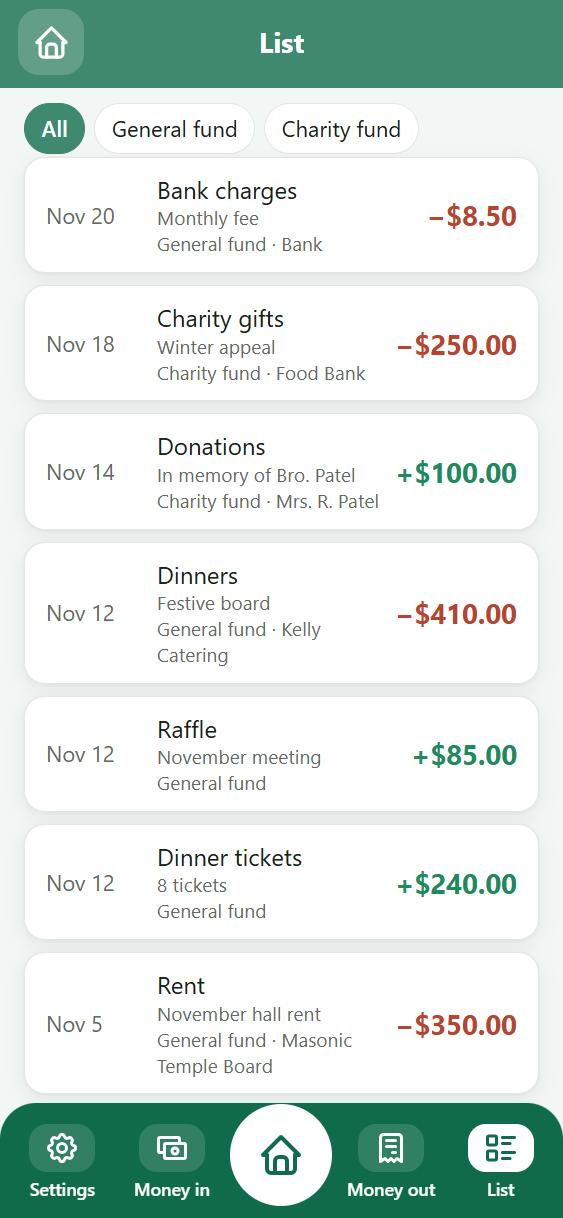
Every entry, newest first: the date, the kind, the note, the fund and who. Money in is green with a +, money out red with a −. Tap All, General fund or Charity fund to see one fund only.
7. This month
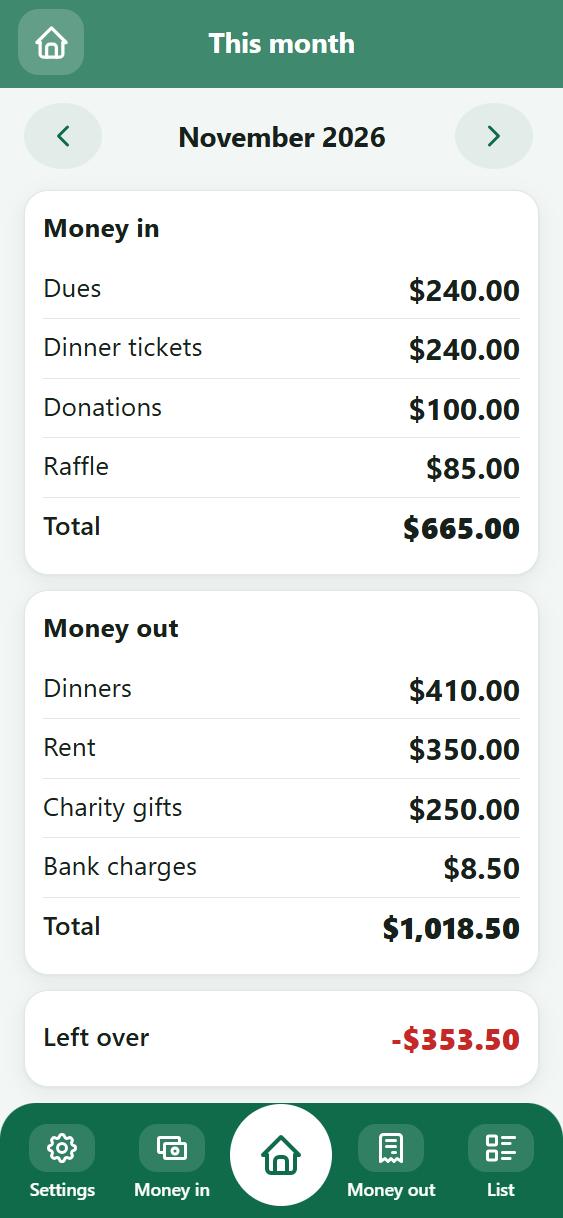
One month's money in and money out, added up by kind, biggest first, with what was left over. Use the arrows to go back a month.
8. Taken or banked, and To bank
Lodges report money in two ways, so the app offers both in Settings, Monthly report:
- When taken: each entry counts on the day it came in.
- When banked: cash waits until you pay it into the bank, then counts as one deposit on that day. Cheques, eTransfers and bank payments count straight away.
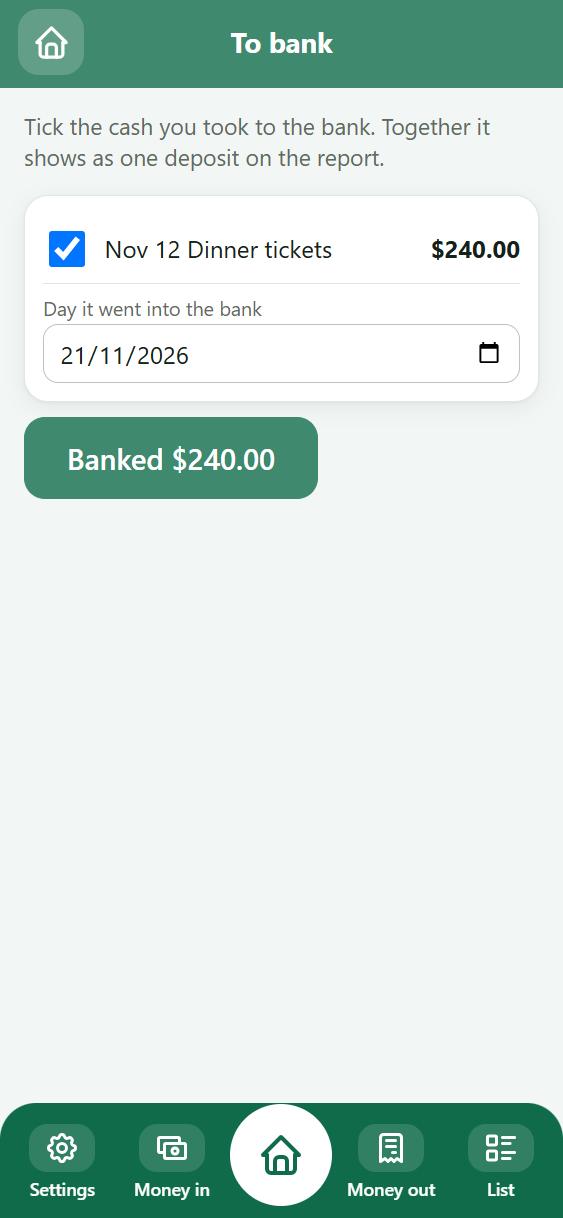
With "When banked", the To bank tile shows the cash waiting. After a visit to the bank, open it, tick the cash you paid in, pick the day, and tap Banked.
9. The monthly report
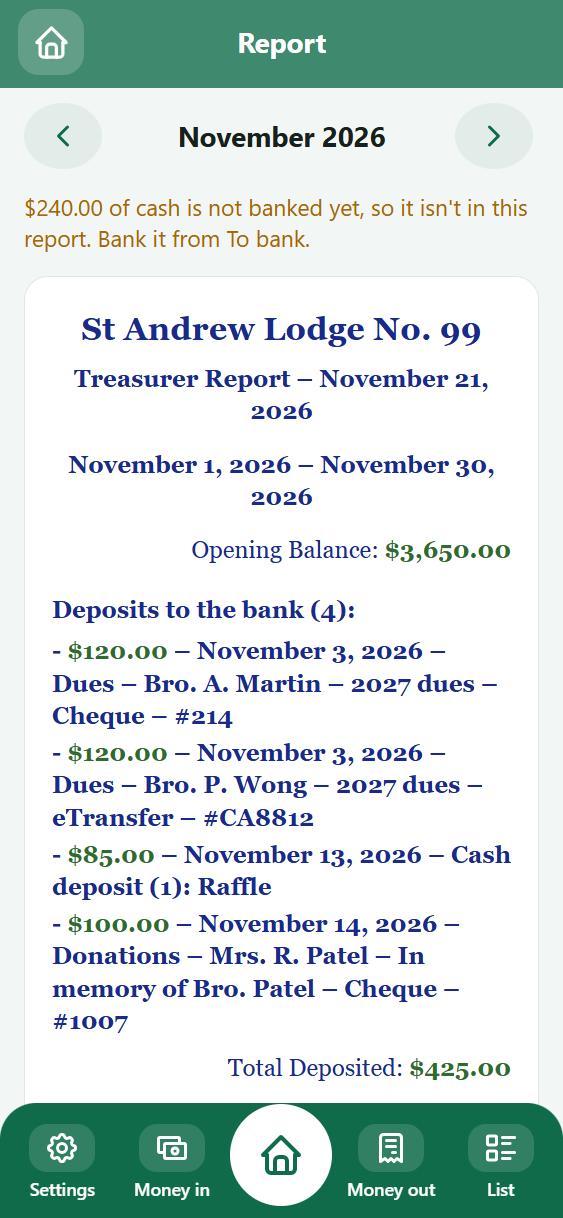
Home, Report. Pick the month with the arrows. The report shows:
- the opening balance
- deposits (or money in), each on its own line
- money out, each on its own line
- the closing balance
- the treasurer's name and a line to sign
Below it you can type the treasurer's name and the bank statement balance, to show beside ours. Then Print, or save as PDF to email to the Secretary.
If cash is still waiting to be banked, an orange note at the top says so.
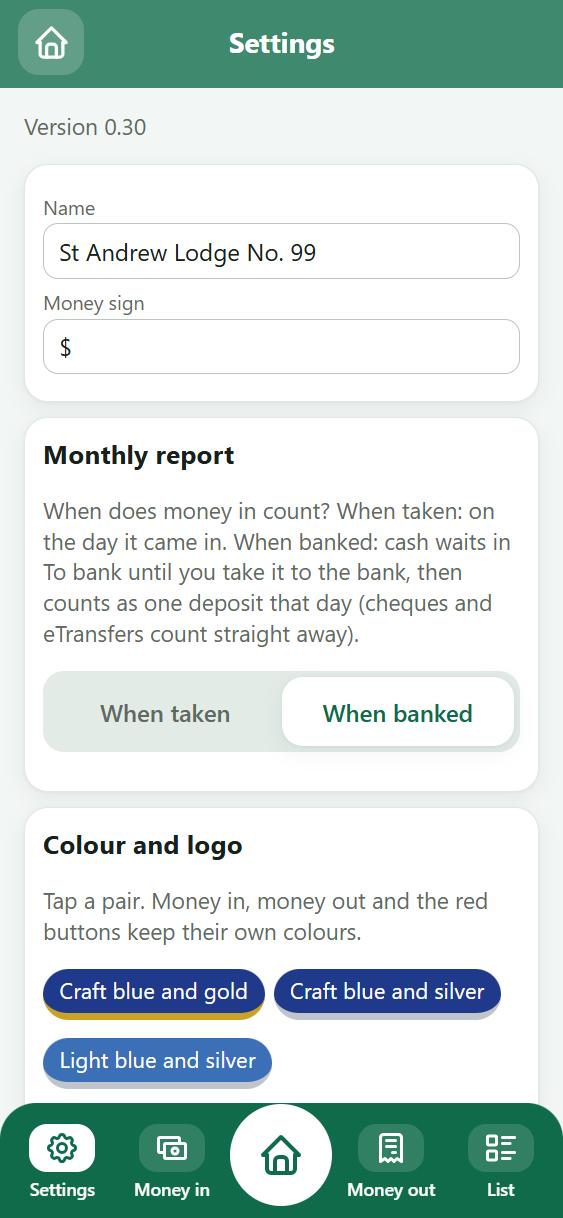
10. Settings
- Name and money sign of the lodge.
- Monthly report: When taken or When banked (see above).
- Colour and logo: colour pairs from the degrees and orders (Craft blue and gold or silver, Royal Arch, Mark, Knights Templar, Scottish Rite, Eastern Star), or your own. Add the lodge's logo to show on Home.
- Funds: add, rename or remove funds, and "Had at the start" (opening balance) for each.
- Kinds of money: the buttons you pick from on the form. Add your own (Ladies' night, Building fund appeal) or remove ones you never use.
- People and companies: names set up ahead, such as the Temple Board or the caterer.
- Words: change "Money in", "Money out", "What we have" or "Fund" to suit your lodge.
- Ask before removing, and our Next / Save bar above the keyboard: switch either off if you prefer.
- Start again: deletes everything on this phone. It asks twice. Make a backup first.
11. Backup
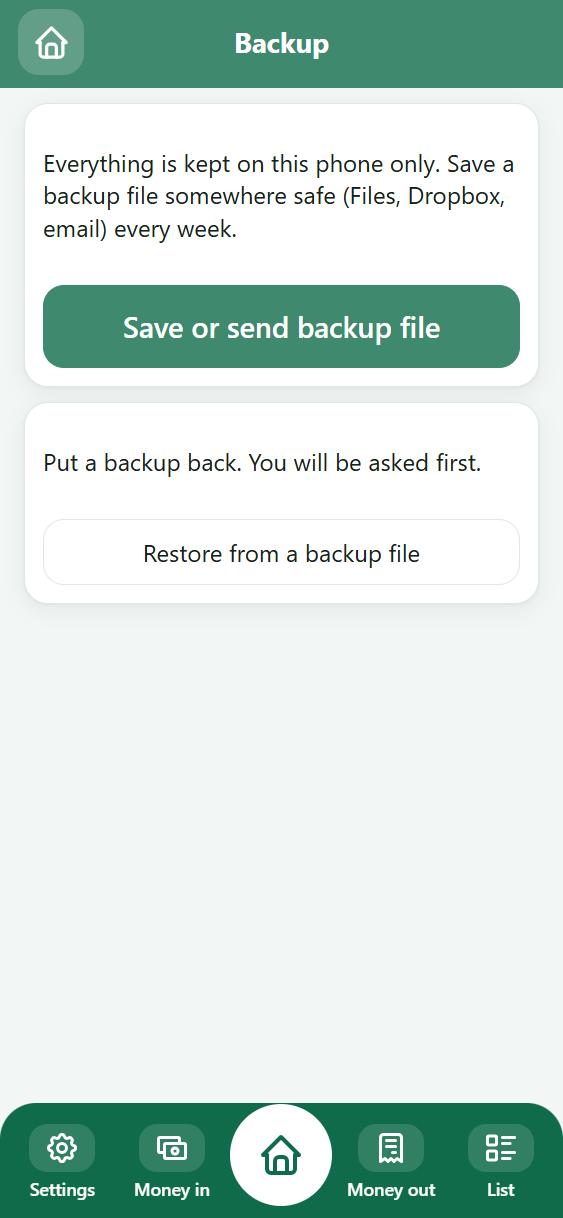
Home, Backup, then Save or send backup file. On a phone this opens the share sheet: save to Files, Dropbox or Google Drive, or email it to yourself. To put a backup back, tap Restore from a backup file. It asks first.
The Backup tile shows how long it has been, and turns orange after a week.
12. Sharing the book
Sharing lets brothers add money from their own phones, and lets you use the book on a phone and a PC.
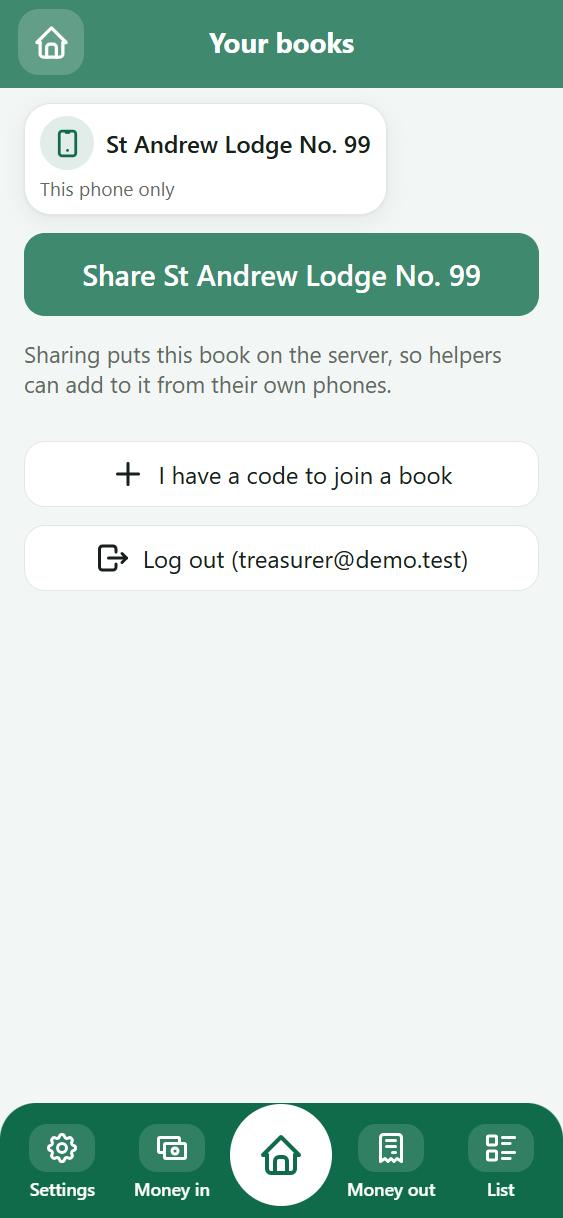
- Home, Your books.
- Type your email and a password, then Make an account. Next time, just Log in.
- Tap Share with your lodge's name. The book moves onto our server and keeps working on your phone.
Your books then lists every book you are in, and which ones are shared.
13. Helpers and what they can do
Home, Helpers, then Add a helper. Type his name and email and tap Add. You get a one-time code, such as G6CJ SJKF. Give it to him by text, on paper or at the meeting. It works once.
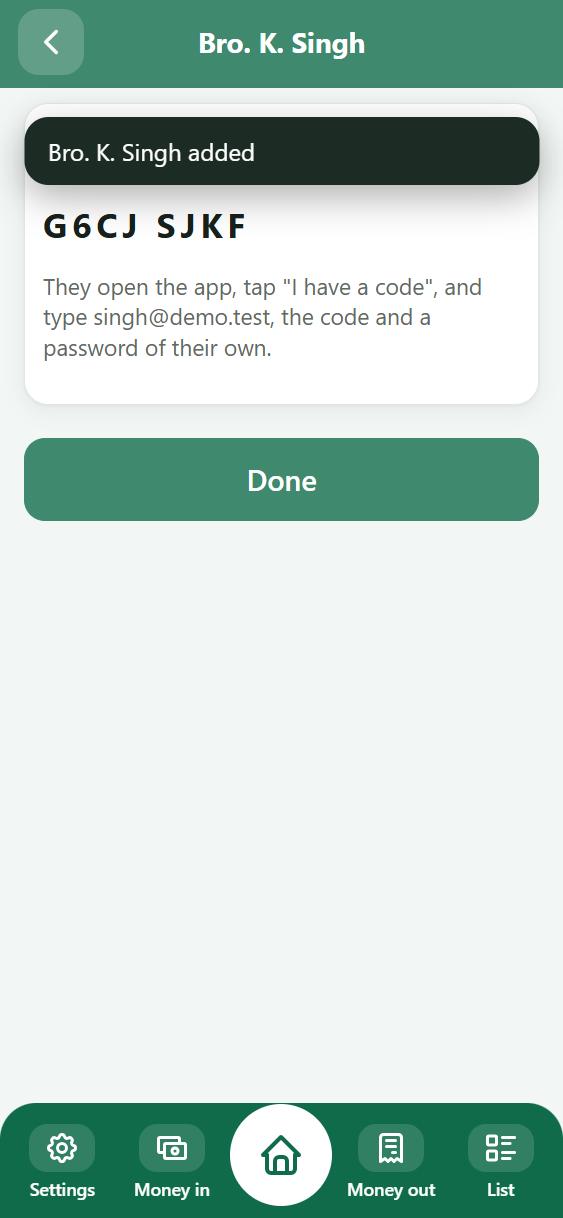
The Helpers list shows everyone, with their role, or "Not joined yet" until they use their code. Tap a name to open his page.
| Role | What he can do |
|---|---|
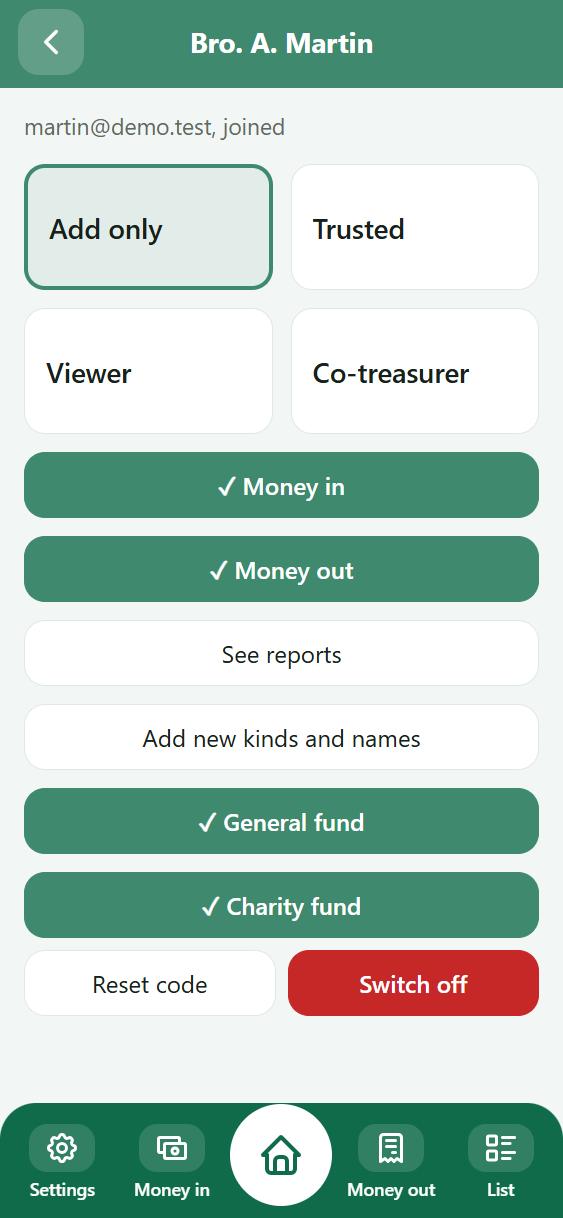
| Add only (the start) | Add money in and out. What he adds waits in To check for you. |
| Trusted | Adds straight into the book, sees reports, can add new kinds and names. |
| Viewer | Sees the book and reports, adds nothing. Good for the auditors or the Master. |
| Co-treasurer | Everything but Settings and people. Can accept helpers' entries. |
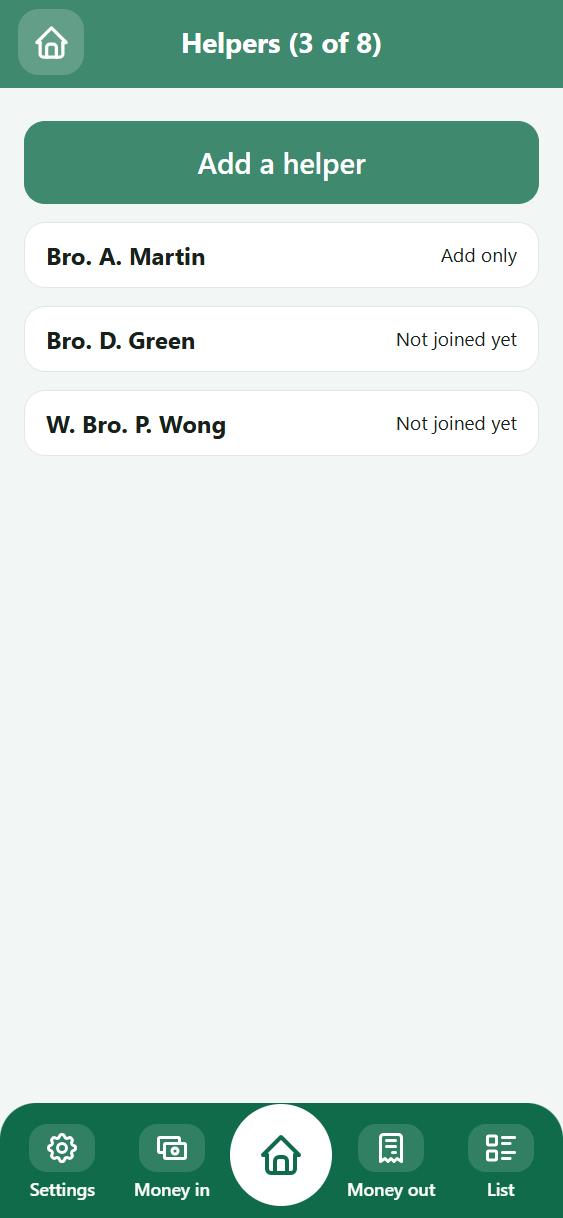
On his page you can also switch single things on or off: money in, money out, see reports, add new kinds and names, and which funds he may use. Reset code gives a new code if he forgets his password or gets a new phone. Switch off stops him using the book at once; switch him back on any time.
14. To check
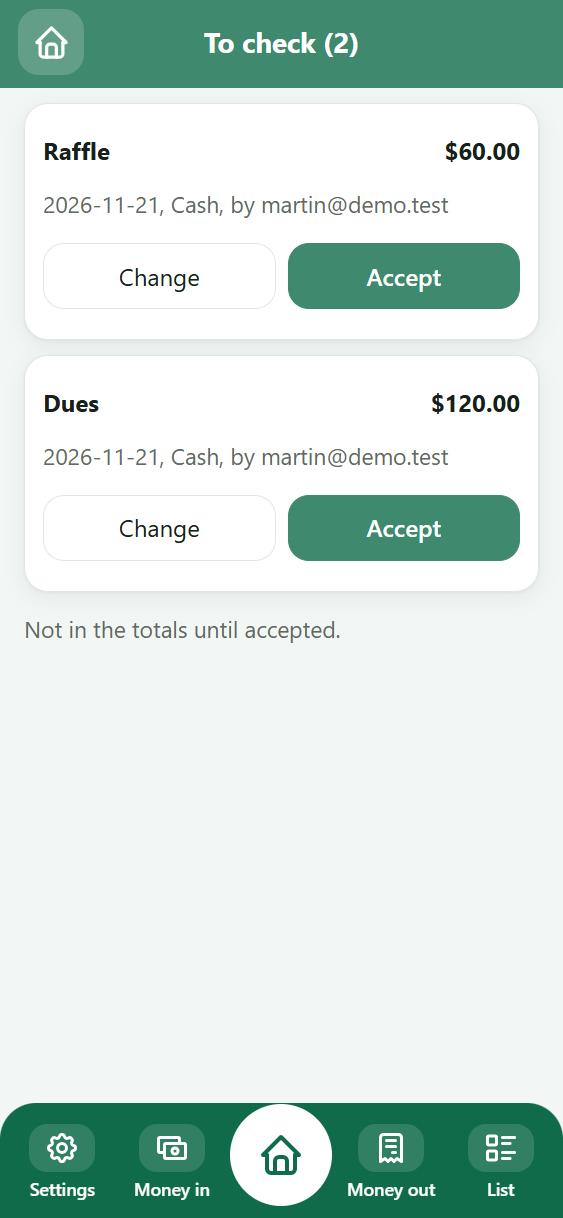
Entries from Add only helpers wait here, with who added them. Tap Accept to put one in the book, or Change to fix it first (saving a change accepts it too). Until then they are not in the totals or the report.
The To check tile on Home shows how many are waiting. It shows new ones when you open the app.
15. For helpers: joining a book
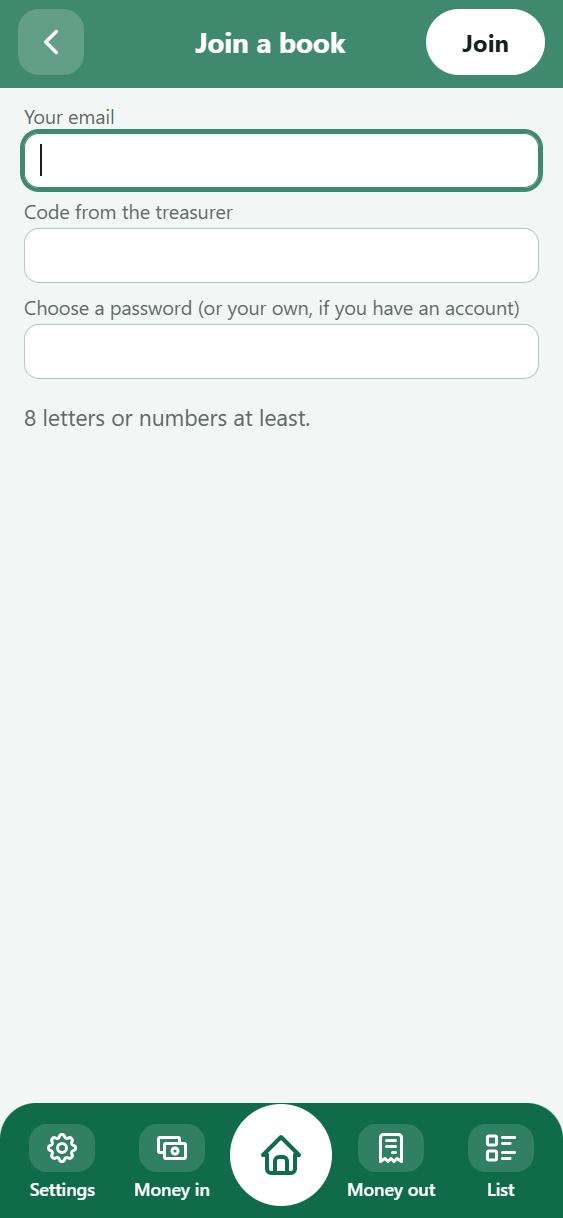
- Open twokeysledger.com/app on your phone.
- Tap Log in, or join a book with a code, then I have a code.
- Type your email (the one the treasurer used), the code, and choose a password of at least 8 letters or numbers. Tap Join.
- In Your books, tap the lodge's book.
Next time just log in with your email and password. One login reaches every book you are in.
16. No signal
The app keeps working with no signal: in the lodge room, the basement, on a plane. For a shared book, every change waits on the phone, and Home says how many are waiting. They are sent by themselves once the phone is back online. Nothing is thrown away. If the server says no (for example, a helper isn't allowed to add money out), a red message says why.
17. What we assumed
We made the app for Canadian lodges first. These are the choices that follow from that. If one doesn't fit your lodge, please tell us.
- Dollars and Canadian dates. The money sign can be changed in Settings.
- Your lodge may issue official donation receipts, so donations ask for the giver's name. The app keeps the name; it does not print CRA receipts yet.
- One treasurer per book. He owns the book; others help. A co-treasurer can do nearly everything, but only the owner changes settings and people.
- No sales tax, payroll or investments. A lodge's money is simple; the app keeps it simple.
- Cash paid out counts like any other money out. Lodges usually pay bills by cheque or eTransfer.
- A new treasurer next year takes over the same book (see below), so the history stays together.
18. Questions
I lost my phone.
A shared book: log in on the new phone and open it from Your books. Everything sent before is there. A book on one phone only: restore your last backup file.
A helper forgot his password.
Open his page in Helpers and tap Reset code. He joins again with the new code and picks a new password.
I forgot my own password.
Getting a new password by email is coming. Until then, keep it somewhere safe.
We have a new treasurer.
Handing a shared book to a new owner in one step is coming. Until then, add the new treasurer as a Co-treasurer so he can work in the book straight away.
Can the brothers see the lodge's money?
Only the people you add, and only what their role allows. A book you don't share stays on your phone.